DropFile · Windows, iPhone & iPad
Convert almost anything, without uploading it anywhere.
DropFile converts PDFs, documents, images, video, audio, spreadsheets, and archives, with more than 40 actions across seven file categories, from one drop zone. Every conversion runs on your own device, with no account, no uploads, and no server in between.
v1.24.9 · SVG support · 40+ actions · 100% local · Windows 10/11 · iPhone & iPad
Every format you actually use
PDF, documents, images, video, audio, spreadsheets, and archives, with 40+ conversion actions across seven file categories, all from the same drop zone.
Entirely on your device
Every conversion runs locally. No server, no cloud step, no telemetry. Your files never leave your PC.
Drop many, done together
Batch-convert a folder of images, merge PDFs in the order you choose, or bundle mixed files into a single ZIP, all in one drop.
By the numbers
Reviews
What people say after they install it.
Reviews from DropFile users on the Microsoft Store.
Great product
So easy to use, I love keeping it open on my desktop. I always need to convert files for something. This app makes it so easy.
Where have you been?!?
I run my own consulting business and can't tell you how much time this tool has saved me. It literally cuts my workflow in half and lets me focus on growing my business, not opening, closing, printing, and scanning files. A game-changer for day-to-day needs.
Drag. Drop. Done!
DropFile makes file conversions unbelievably easy. I just drag and drop, tap what I want it to do, and it's done in seconds. The interface is clean, intuitive, and completely hassle-free. Highly recommend for anyone who wants quick, simple, no-stress file handling.
Super impressed with this simple tool
I feel lucky to have come across this file converter app. It's one of the cleanest and most simplistic apps I've used. It's always accessible and super easy to drop files into, the app does the rest. A great alternative to expensive programs like Adobe.
Privacy
Every upload is a risk. DropFile takes none.
Millions of people upload sensitive documents, contracts, financial records, and personal photos to free online conversion tools every day. Most don't think twice. They should.
Online converters
- Your file is uploaded to a server you don't control
- Files may be stored, logged, or analyzed by third parties
- Exposed to data breaches, leaks, and unauthorized access
- No guarantee your file is ever actually deleted
- Your sensitive data could be used to train AI models
- Requires an internet connection, and your trust
DropFile
- All processing happens on your machine, period
- Your files never leave your PC under any circumstance
- No server, no third party, no exposure risk
- Works entirely offline after installation
- Your data is yours. It stays yours.
- Built by a cybersecurity firm that understands what's at stake
Sharing files that may hold personal data? FileSentinel scans for SSNs, payment cards, health records, and hidden metadata before you send.
Features
40+ actions across 7 file types.
A single drop zone, every format you actually use. Built for daily workflow, tuned for power users, configured to your taste.
40+ conversion actions
Compress, encrypt, extract, resize, trim, normalize, bundle. One drop zone, every operation across all 7 file categories.
100% local processing
Every conversion runs on-device. No server, no cloud, no upload step, no telemetry. Your files never leave your PC.
Batch mode
Drop multiple files and DropFile processes them together. Batch-convert images, merge PDFs in any order, or bundle to ZIP in a single drop.
Pinnable favorites
Pin the conversions you use most so they're one drop away. Tailor DropFile to your workflow and it stays out of your way.
No Office required
Convert DOCX, DOC, ODT, RTF, and TXT to PDF without Word, Excel, or any Office install. Convert spreadsheets without Excel.
Runs offline
Once installed, DropFile runs entirely offline. No internet connection needed to convert PDFs, images, video, audio, sheets, or archives.
SVG support
Convert vector graphics to and from raster formats, including SVG favicons. Designers, web devs, and brand teams welcome.
Strip EXIF privacy
Remove embedded metadata from images with one click. Protect location data, device IDs, and personal info before sharing.
AES-256 PDF encryption
Password-protect any PDF with AES-256 encryption. Extract specific page ranges, compress, or rotate. Total control.
How it works
Three steps. Zero friction.
Drop. Choose. Done. The entire DropFile pipeline, from desktop widget to converted file, in under thirty seconds.
Drag any file onto the DropFile widget, or press Ctrl+O to open a file picker. Drop multiple files to use batch mode.
The widget expands and shows every action available for your file type. Adjust quality, page range, trim points, or other parameters as needed.
Your converted file is saved to your output folder instantly. Open it or reveal it in Explorer, then press Escape to reset.

DropFile in action: drop, choose, done.

Choosing an action for a dropped PDF.
Supported formats
Every format you actually use.
Seven categories, dozens of formats, 40+ conversion actions across the lot. If your file isn't here, drop us a line. We add formats based on real demand.
- Compress PDF file size with one click
- Password protect with AES-256 encryption
- Extract specific pages, e.g. 1–3, 5, 8–10
- Rotate pages 90°, 180°, or 270°
- Convert to images at up to 300 DPI (PNG or JPG)
- Extract all embedded images from any PDF
Documents
No Office needed- Convert DOCX, DOC, ODT, RTF, and TXT to PDF
- No Word or Office installation required
- Export to plain text, HTML, or Markdown
- Drag-and-drop, no menus, no dialogs to hunt for
Images & photos
Every transform- Convert between JPG, PNG, WebP, GIF, BMP, and TIFF
- Resize with max-width and fit mode (Inside, Contain, Cover, Fill)
- Crop to custom dimensions or aspect presets (1:1, 4:3, 16:9)
- Add text watermarks with custom positioning
- Strip EXIF metadata to protect privacy
- Flip horizontal or vertical, rotate in any direction
Video
Simplified- Convert AVI, MOV, MKV, MP4, WebM instantly
- Extract audio as MP3, AAC, WAV, or FLAC with bitrate control
- Trim video to precise start and end times
- Change resolution: 1080p, 720p, 480p, or 360p
- Extract individual frames at custom frame rates
- Export any video clip as an animated GIF
Audio
Full conversion- Convert between all major audio formats
- Compress audio files to reduce size
- Trim to a precise start and end time
- Normalize volume levels across files
Spreadsheets
No Excel needed- Convert spreadsheets to CSV or JSON
- Export to HTML for web use
- Convert CSV back to XLSX
- No Excel installation required
Archives
Bundle & extract- Extract ZIP, TAR, 7Z, and RAR archives
- Create a ZIP archive from any files
- Bundle multiple files into one ZIP
- No third-party tools required
Customization
Tailored to how you work.
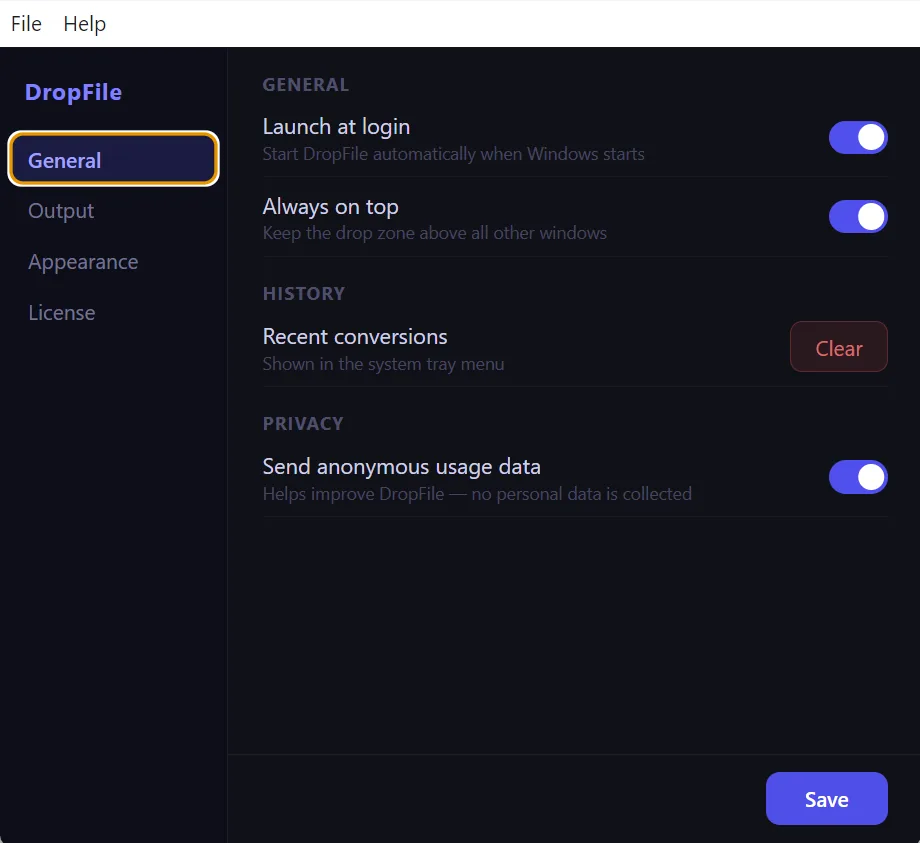
Launch at login, always on top, custom output folder, filename templates, widget appearance, and update channel. Configure once, then forget.
Power users
Built for keyboard workflows too.
| Shortcut | Action |
|---|---|
| Ctrl + O | Open file picker |
| ↑ / ↓ | Navigate the action list |
| Enter | Execute selected action |
| Escape | Reset to idle drop zone |
FAQ
Questions people ask before they install.
Does DropFile upload my files to the cloud?
Does DropFile work without an internet connection?
What file formats does DropFile support?
Do I need Microsoft Office installed to convert documents?
What operating systems does DropFile support?
Can DropFile convert multiple files at once?
Where can I download DropFile?
Is DropFile available for iPhone and iPad?
Popular converters
Start with the conversions people search for most.
Each page explains the conversion, compares formats, highlights local processing, and links directly to the Microsoft Store download.
PDF and documents
Spreadsheets, images, video, audio, archives
Support
Stuck? Open a channel.
A full help guide ships with the app. For everything else, the support page and direct email are one click away.
Support articles: dropfile-support.html
Email: support@vandien.io
Phone: (551) 236-3191, business hours, US Eastern time
iPhone & iPad: App Store